
Agentic AI Security: Tool Poisoning and Audit Trails
Explore agentic AI security risks, including MCP tool poisoning, and learn how governance, permissions, approvals, and audit trails reduce exposure.
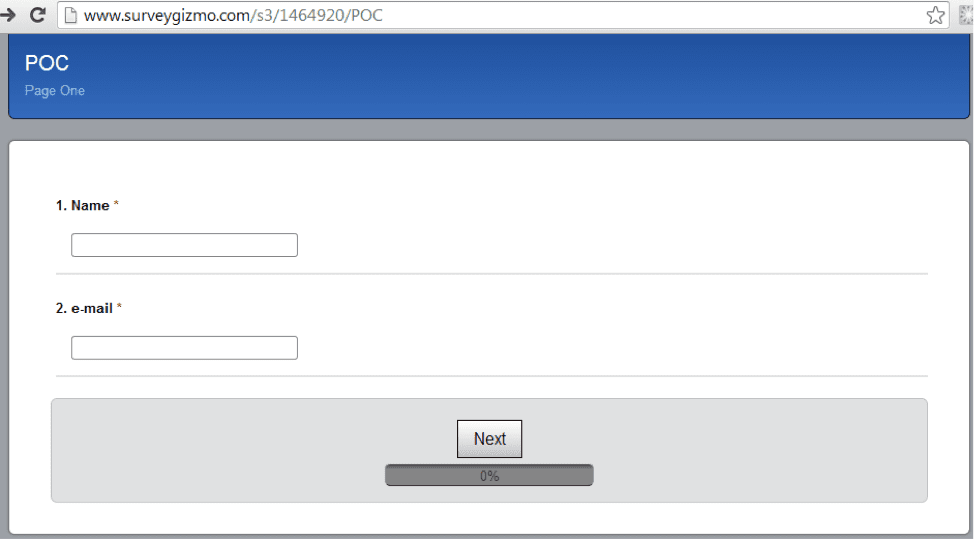
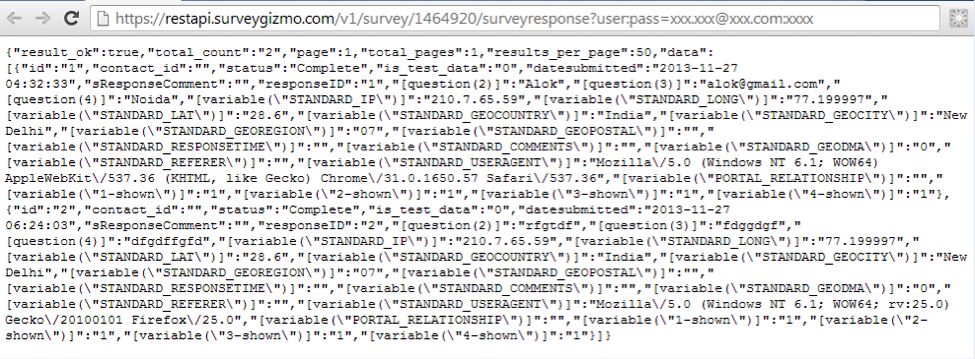
Survey tools provide easy and cost-effective ways of collecting information from a large number of individuals. Instead of collecting data on a Salesforce portal, you can integrate your survey tool with Salesforce and insert data onto a custom or standard Salesforce object. In this article, I will give you pointers on how to insert data from Survey Gizmo (www.surveygizmo.com) into salesforce objects. Obviously you can do the same with other survey tools too (as long as APIs are exposed).
There are 3 basic steps to complete this integration:
Apply check to not insert duplicate data in SFDC data.
To start with it, we need to create a custom visualforce page to consume Survey Gizmo API and apex controller to synchronize Survey Gizmo.
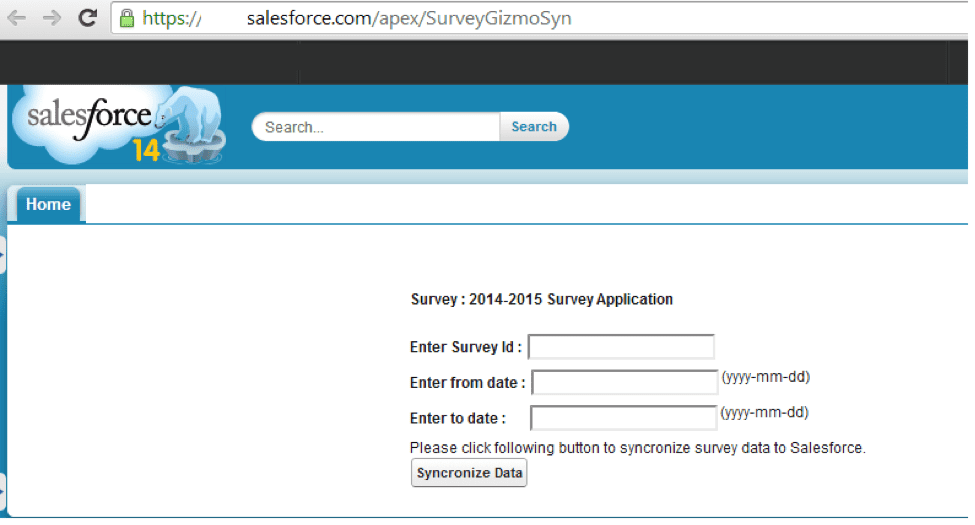
For a particular survey, the user can also further filter the records for synchronization by providing from Date and to Date to filter on the created date of records in Survey Gizmo.
After applying all the filters, users click on the sync data button & fetch records from Survey Gizmo. The custom controller inserts the survey records to a custom object and contact & account objects.
Survey Gizmo provides the URLs for attachment that were uploaded at the time of creating a record in Survey Gizmo. To save these attachments to the respective record in Salesforce you will make HTTP requests for each individual record because there is a limitation of 10 callouts to an HTTP request or an API call. To overcome this problem we created an apex job which is started after the Survey records had been synced in Salesforce.
NOTE: You can monitor the attachment sync status at Setup-> Monitor -> Apex job.
Custom Button: we can create a Salesforce custom button that can be used to display on the standard list view page to perform some specific operations like call JavaScript function, open a custom visualforce page, etc. We used this to write functionality to assign multiple records from the standard list view of custom objects to a user.
This button is used to assign bulk records to a user for some specific processing. User can select the number the records from the list by checking the checkbox available with every record in Salesforce in standard List View. After selecting the records user can click on the button that will redirect it to a custom visualforce page & it will list all the selected records from the list view.
Get Started
Share a few details about your goals: a Mirketa consultant will follow up within one business day.
 Certified Partner
 SOC 2 Certified
 HIPAA Ready
 Enterprise Ready